
Apps and your phone
Connect apps
Connect Gmail, Google Sheets, Notion and other apps so every agent on your team can work in them.
An app here is an account your agents reach through a direct connection instead of the browser, such as Gmail, Slack, Google Sheets or Notion. A connection belongs to your Yomates account, so every agent on the team can use it.
Connect an app
- Click your name at the bottom of the roster (the list of agents on the left) and choose Apps. The shortcut is ⌘⇧A on a Mac, Ctrl+Shift+A on Windows and Linux. Apps is also a section of Settings.
- Find the app with Search apps.
- Click CONNECT on the app's tile. The service's own consent page opens in your web browser.
- Approve access there and come back. The list refreshes on its own, and the app moves under CONNECTED as a card.
| Group | What it means |
|---|---|
| CONNECTED | Accounts you've connected. Agents can use them now. |
| NOT CONNECTED | Apps one CONNECT away. Twelve show first; SHOW ALL with the count shows the rest. |
| NO SIGN-IN | Apps that need no account, marked Ready. Agents can use them as they are. |
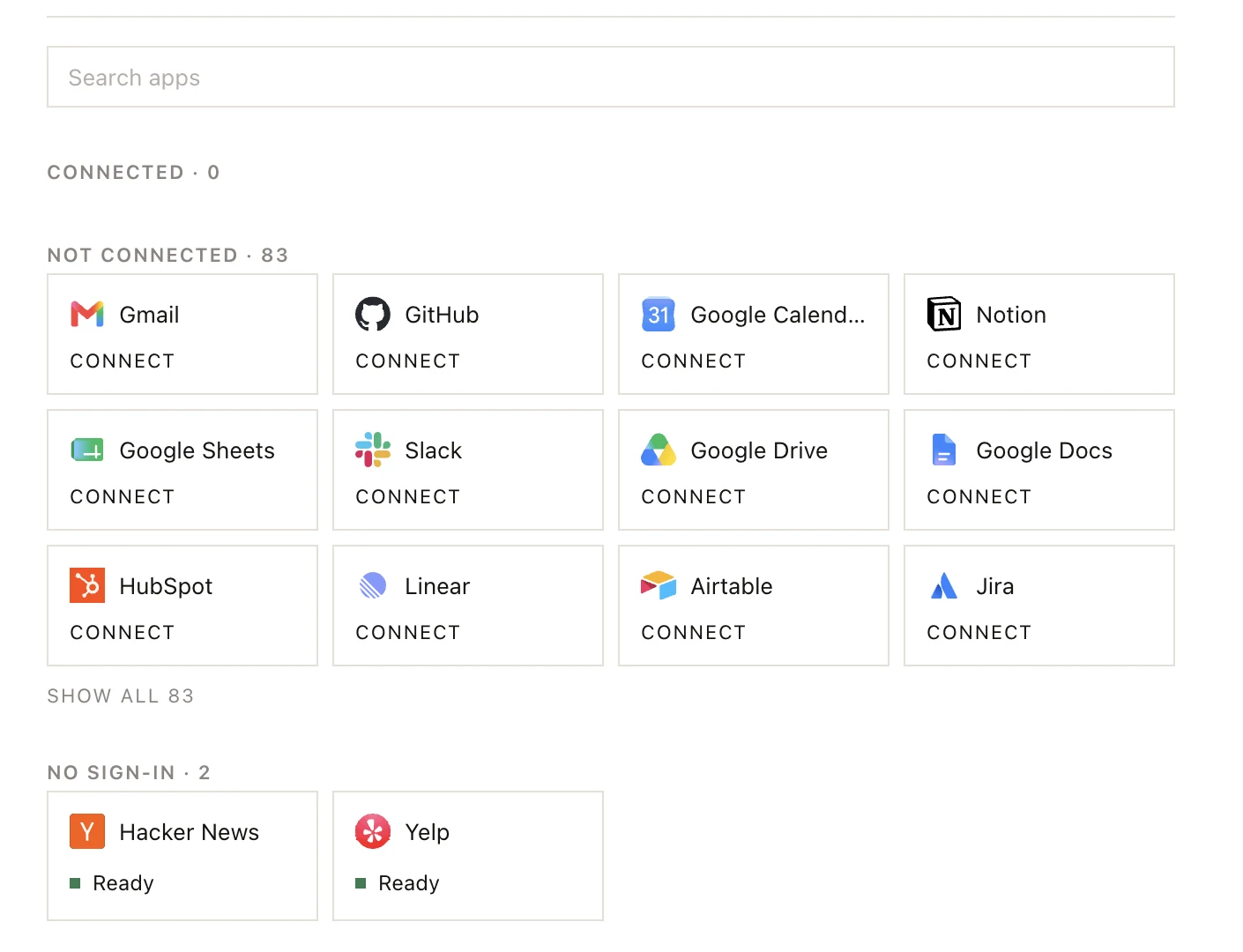
Ask an agent to use it
Ask in plain words: "find this week's order emails in Gmail" or "add today's orders to the sheet". If you ask for an app that isn't connected yet, the agent can open its consent page in your browser itself.
- Running an action in a connected app uses credits. See Credits.
- An action that sends, publishes or deletes something follows the same rules as the rest of an agent's work. See Ask first or skip.
A site with no app in the list, such as a seller center, is still reachable: the agent opens it in its own browser. See Watch an agent work.
Disconnect an app
- Click DISCONNECT on the app's card.
- Click it again to confirm.
Was this page helpful?