
The browser
Watch an agent work
Open an agent's live browser, follow each step, and take the keyboard back when you need to.
Every agent has a real browser inside Yomates. It opens the sites you sell on, signs in, types and clicks, and you can watch every step or take over at any moment.
Open the live browser
When an agent starts using its browser, the column on the right shows Browser with a preview of the page.
- Click ↗ OPEN on the preview. The live browser opens in the middle of the window, and your chat moves to the left so you can keep talking while you watch.
- Click BACK TO THREAD, or press Esc, to close it and go back to the chat.
While the agent works, small squares blink along the edges of the page and a dot pulses on the tab it is working in.
PREVIEW and HIDE at the top of the chat show and hide the right column. If you switched that column to something else, Watch agent brings it back to whatever the agent is working on.
Pages play sound only while the browser is open in the middle.
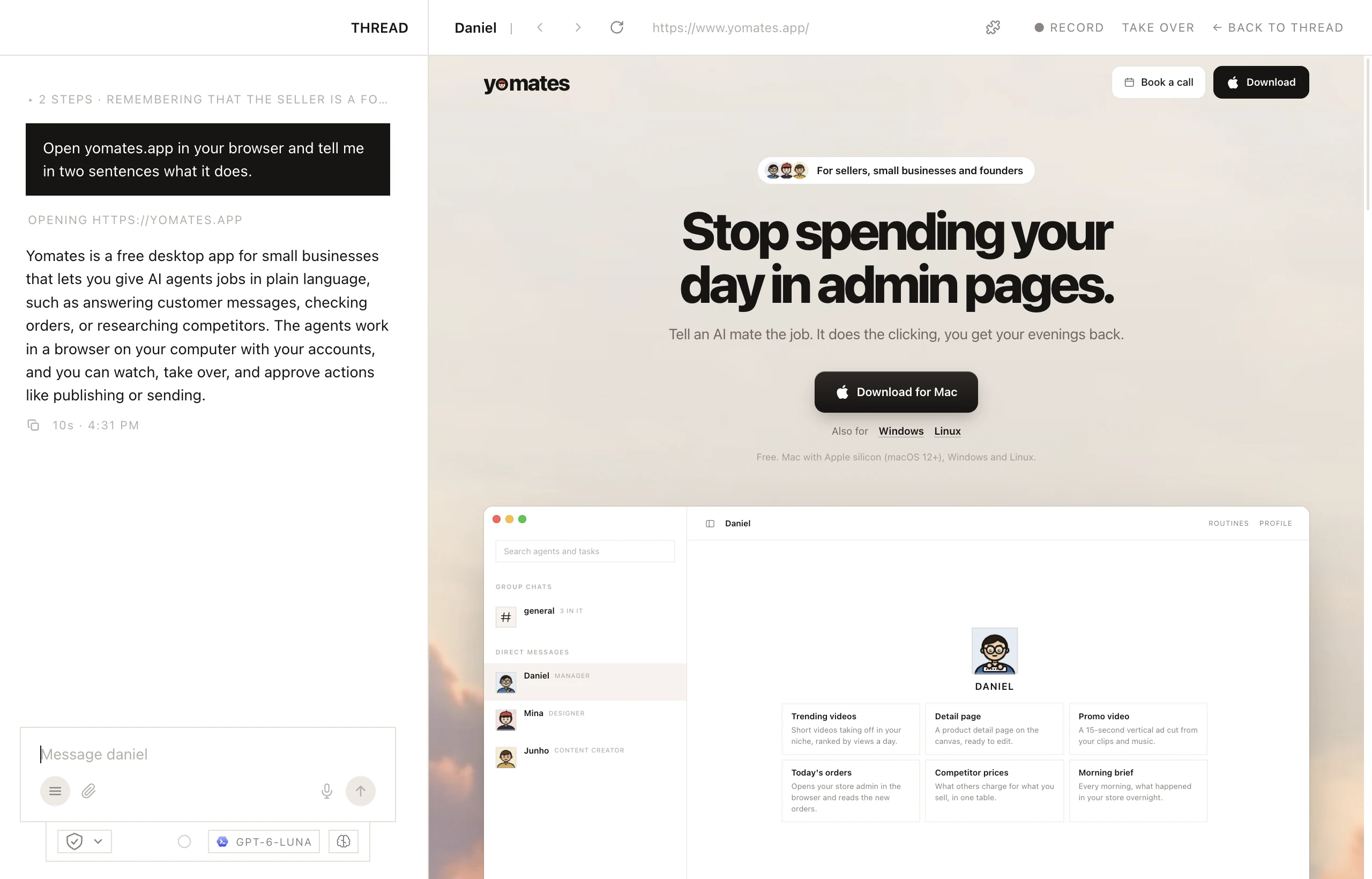
The browser bar
| Control | What it does |
|---|---|
| Back, Forward, Reload | The usual page buttons, at the left of the bar. |
| Address bar | Type an address and press Enter to open it. |
| Extensions | The puzzle piece. Lists your Chrome extensions. |
| ● RECORD | Records you doing a job so the agent can learn it. See Show a job once. |
| TAKE OVER | Takes the browser from the agent. |
| BACK TO THREAD | Closes the live browser and goes back to the chat. Esc does the same. |
Take the keyboard back
- Open the live browser.
- Click TAKE OVER. The agent's next step in the browser is held, and it waits for you.
- Do what you need: type a password, fix a field, solve a puzzle.
- Click HAND BACK. Leaving the browser with BACK TO THREAD or Esc hands it back too.
If the agent ended its turn while you had the browser, tell it in the chat to carry on.