
Passwords
See and edit saved details
Open, change, add and delete the logins and details your agents use, and choose whether they are kept in Yomates or in 1Password.
See and edit what is saved
- Click your name at the bottom of the agent list, then Settings.
- Choose Passwords.
- Under LOGINS, click an item to open it.
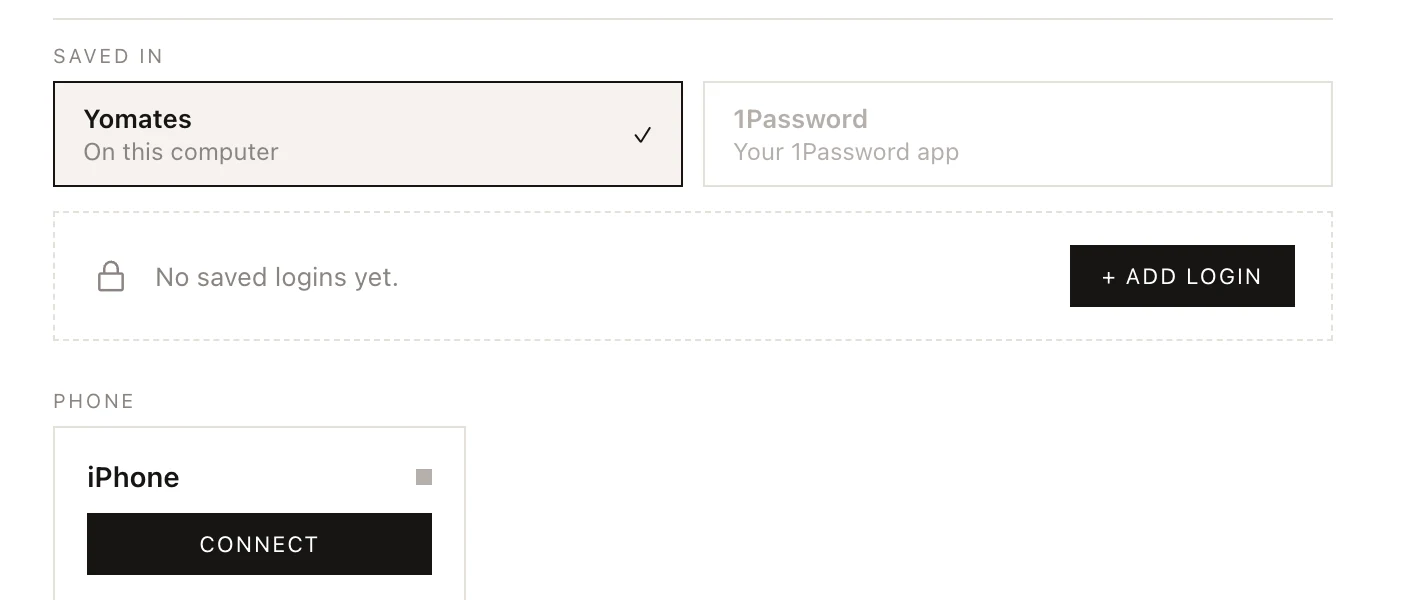
Each item in the list starts with its first letter, then its title, site and field names. With nothing saved yet, the page shows No saved logins yet. and a + ADD LOGIN button to start one.
| Control | What it does |
|---|---|
| Title, Site (optional) | The item's name and the site it belongs to. Agents find items by these. |
| SHOW / HIDE | Shows a hidden value or hides it again. |
| ADD FIELD | Adds a field. Type its name, then its value. |
| DELETE | Click once, then DELETE FOR GOOD to remove the item. |
| CANCEL | Closes the item without saving. |
| SAVE | Saves your changes. A field you emptied is removed. |
| + ADD | Beside the LOGINS heading. Starts a new item by hand, with a username and a password field ready. |
Choose where it is kept
SAVED IN has two choices.
| Choice | Where your items are kept |
|---|---|
| Yomates | Yomates' own store: one encrypted file on this computer, locked with the system keychain. |
| 1Password | Your 1Password, through its command-line tool (CLI). |
To use 1Password:
- Install the 1Password CLI and turn on its desktop app integration. Until then the 1Password choice is faint, and hovering it says so.
- Under SAVED IN, click 1Password.
With 1Password picked:
- Agents read both stores, and new items go to 1Password.
- 1Password may ask you to unlock it when an agent first reads from it. Unlock it, and the agent carries on.
- Passwords in Settings still lists Yomates' own items. Items in 1Password are edited in 1Password.
If Yomates can't be picked, the computer has no keychain to lock the file with. This can happen on some Linux setups.
Not in the cloud backup
Yomates' own store is kept on this computer and is not part of the cloud backup. On a new computer, you save your logins again the first time an agent needs them. See Cloud backup.
To have them on your iPhone too, click CONNECT next to PHONE in Settings → Passwords and scan the code with the iPhone camera. A locked copy then goes to the Yomates iPhone app each time something changes; the Yomates service passes it on but can't open it. DISCONNECT deletes that copy. Logins kept in 1Password are not sent.