
Agents
Add and change agents
Hire a new agent by describing the job, then change its name, face, instructions and notifications whenever you like.
Add an agent
- Click the plus beside Direct messages (New agent).
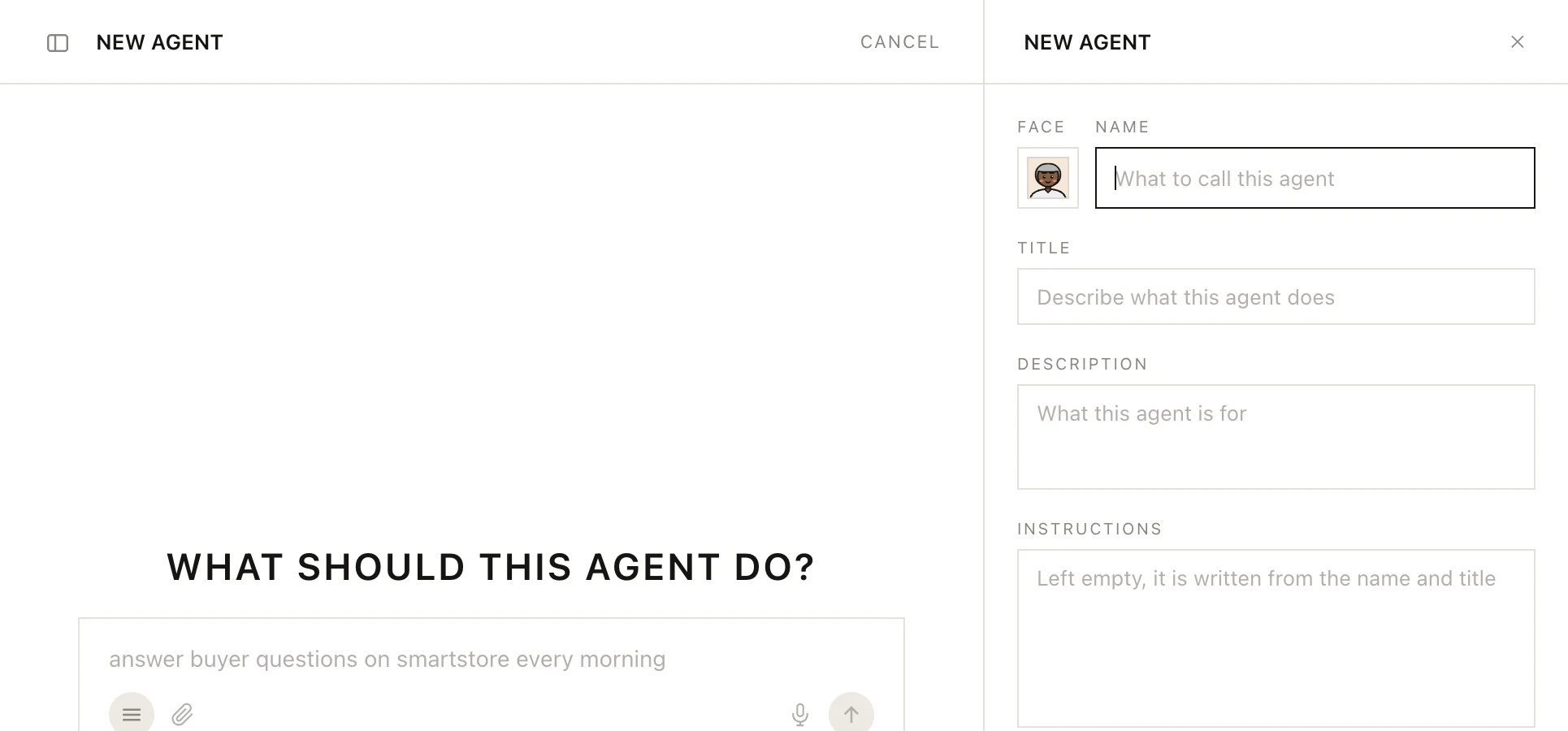
- Answer What should this agent do? in a sentence, for example "answer buyer questions on my store every morning".
- Answer what the hiring agent still needs to know. It fills in the panel on the right as you talk, and you can edit any field.
- Say yes when it asks for your go-ahead. The new agent joins the list and its chat opens.
Or fill in the panel yourself and click SAVE AGENT. CANCEL drops the hire. Two agents can't share a name.
Change what an agent does
- Open the agent's chat.
- Click PROFILE at the top.
- Change what you need. Changes are kept as you make them.
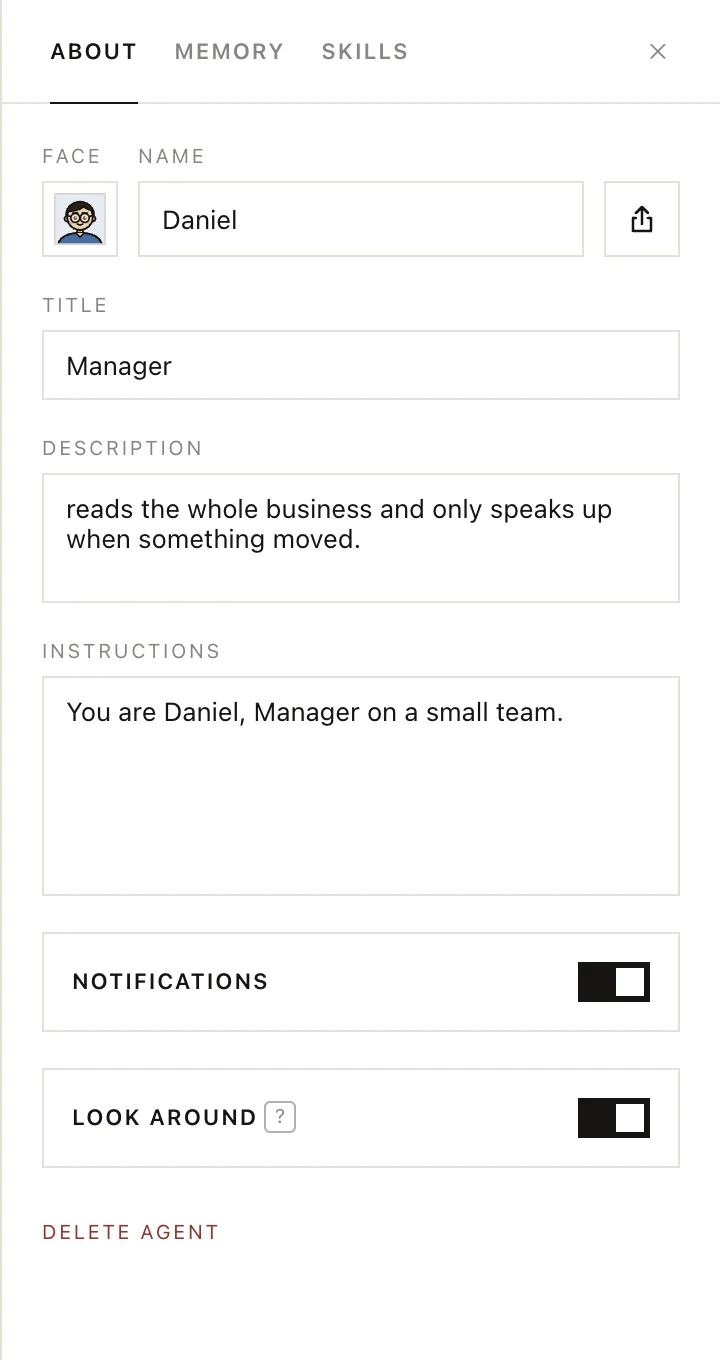
The profile has three tabs. ABOUT holds:
| Field | What it is |
|---|---|
| FACE | The picture in the list. |
| NAME | What you and the rest of the team call it. |
| TITLE | Its job, shown beside the name. |
| DESCRIPTION | One line on what it is for. |
| INSTRUCTIONS | Standing instructions. Left empty, they are written from the name and title. |
| NOTIFICATIONS | A notification when it finishes or needs your answer. |
MEMORY is what the agent has learned about you and your business. Edit or delete any line; it saves when you click outside the box. See Memory.
SKILLS lists the skills it has. See Skills.
The strip under the message box sets the agent's permissions and its AI model.
Delete an agent
- Open the agent's chat and click PROFILE.
- Click DELETE AGENT at the bottom of ABOUT.
- Click it again (DELETE FOR GOOD — CLICK AGAIN) to confirm.
Deleting removes the agent and its chat. The last agent can't be deleted.
Was this page helpful?